17.5.10
Maximum Space of a hard disk 2010 3TB
The current maximum storage space for a desktop hard drive is 2TB .If you planning to add more storage space to your computer, You might need to check out our previous post on 7 Things to Consider When Buying A New Hard Disk.
Hard Drives to reach 3TB in 2010?
Technology keep moving on .3TB drive would suggest an increase in maximum platter size.The potential of a 3TB SAS drive can reach to 3TB(3000GB)by 2010 are clear.
From the Seagate roadmaps,dubbed the Constellation-ES, the replacement for the Seagate Barracuda-ES, the drive is expected to arrive later this year with a 7200 RPM rotation speed, and a 6Gbit/s SAS interface. A 1TB !(1000GB) version of the 2.5" Barracuda-ES is also expected to arrive around the mid year point.
If you remember back that far, the increase in density was due to a change in bit alignment, from horizontal to vertical, to counter the superparamagnetic effect.
Hitachi made an excellent and funny flash animation to describe the technology. The feeling is that the increase in platter size is an extension of that technology, rather than a new physical property being exploited.
Depending on how quickly these new hard drives hit the enterprise sector, we could aspect consumer 3TB hard drives by the end of the year as a positive estimate.
However, 17GB/$ ($175 a unit) or a price comparable to current 2TB hard drives would be required for consumer market acceptance. Whether people require 3TB is another matter - video editors, professional photographers, or just for storing your movie and blu-ray collection are possibilities.
Reference:
anandtech.com
seagate.com/www/en-us/
22.1.10
7 Things to Consider When Buying A New Hard Disk
#1.Brand/series/model: In the world of hard drives there are always few big name,and that is Samsung, Seagate,and Western Digita.Nevertheless,many other companies that also make high quality storage devices with low cost and affordable prices,like Hitachi,Fujitsu,Toshiba and many more.
Computer storage options we have now including internal and external usb hard drives.Often,hard drive manufactures release their drives in series, in general the newer series tend to be faster then the older series, even if not by much.
Interface: Currently SATA 3.0gb/s is the newest type of standard interface for hard drives.If you don't what is SATA. SATA stands for" Serial Advanced Technology Attachment".And Sata 3 simply mean the maximum transfer rate that interface is capable of. 3.0gb/s .Previously we have SATA I ,SATA 2 . SATA I had a maximum transfer rate of 1.5gb/s. SATA is now the newest standard for hard drives.When you buy new hard disc,you should always choose the SATA interface hard drive.Note that your computer mainboard also need to have SATA ready port to use a SATA hard disc.However, we can still find many IDE (or "integrated drive electronics") devices instead which also refered to as PATA, or "Parallel Advanced Technology Attachment".*_*This Hardware Tips Bought to you By:http://hardwareonthespot.blogspot.com
IDE drives are yet slower then sata, and require a different installation method. For high performance drives used on servers, there is an SCSI (Small Computer System Interface) as well. It's not compatible with a standard motherboard without the addition of a PCI RAID controller that supports SCSI devices.
#2.Capacity: 1TB is very commond and affordable nowadays.If you been told the hard disc has 1tb, or 1024gb of storage, what you will actually get is about 936gb instead. This is because hard drives manufacturers choose to define their measurements of data differently then the whole rest of the computer world. To them, data is measured in increments of 1000. So they define 1kb as 1000b, and 1mb as 1000 kb, etc, instead of using them in increments of 1024 like your computer does. Still, every company does it, and there is no way of getting around it.
#3.RPM: Stands for "rotations per second". Your hard drive platter spins when accessing and writing data, much like a DVD or CD does in a burner. Most hard drives now operate at 7200 rpm. The faster the rotations, the faster the hard drive can access data. Today, 5400rpm hard drives are still fairly common, especially in Macs. Western Digital makes "raptors" which spin at 10000rpm, and there are some ultra performance drives that rotate at 15000 rpm. These tend to be very expensive though, and lack good capacity.
#4.Cache: The device cache of the hard drive is used to store data while it is doing whatever the hard drive is doing. It is faster then the paging files, and closer to the device then RAM. The hard drive cache has a small impact on how fast the hard drive is. Bigger drives tend to have larger caches.
#5.Average Seek Time: This is supposed to be how long it takes for the hard drive to access the data on the disk. I will be the first to say though that this number is completely false. It is often much longer then that. Usually, especially with larger files on a high capacity drive like this one, the hard drive will have to seek the disk more then once to retrieve all the data. In hard disk drive tests it is not uncommon to see drives score an average seek time of double this. Still, all 7200rpm drives are listed with this seek time, no matter what it really may be for realistic circumstances.
#6.Average Latency: How long it takes for the drive to kick up and start doing what you computer has told it to do. Like seek times, it often takes longer then what it is listed for. Most hard drive manufactures will list their latency at 4.17ms.
#7.Form Factor: The size of the hard drive, or how big it is. This one is the standard 3.5", very common in desktops and roughly the size of a thin journal or paper back book. 2.5" is also a common form factor that is usually for hard drives used in laptops.
Lastly like i always said ,check on their warranty terms,if anything goes wrong make sure you are able to return it and have the tech support if there is an incompatibility issue.This Hardware Tips Bought to you By:http://hardwareonthespot.blogspot.com/
You might also need to know:
What should you do when your hard disc is"down"
What is Raid Data Recovery.
How to Choose Between External Storage And Internal Storage Drives
6.5.09
Backup wirelessly with Seagate Replica
For Windows users,Seagate Replica, which is a backup system that lets you save your entire hard disk player to a potential crash or recover deleted files by mistake (or not).

Backup wirelessly with Seagate Replica By hardwareonthespot.blogspot.com
Seagate Replica now has the capacity of 250 GB and 200 GB .
The backup system is fully automated and a bootable CD is provided in case of crash of your Windows PC that will re-install everything from the backup in the Segat Replica.
Also check out:
How to Choose Between External Storage And Internal Storage Drives
4.8.08
USB hard drives with encryption
USB hard drives with encryption go by a number of different names, such as flash drives or thumb drives. These devices can fit onto your key ring and can contain a huge amount of storage. There are also memory storage cards that can also be used for this purpose.
As USB hard drives with encryption are easily lost or misplaced due to the compact size, many brands of these devices have the encryption placed directly into the hard drive itself to protect your data. Encryption software is also compatible with the majority of these USB hard drive devices. This security is an essential element to protect the data that you may be storing on one of these handy devices.
For the active business person or college student, A USB hard drive with encryption may be the perfect device to access your personal info anywhere safely.
One advantage that these USB hard drives with encryption have over other storage devices such as floppy discs or CDs is the ability to connect into a USB port, which allows them to be used with any computer system due to most new computers today may contain no floppy disk drives. These USB hard drives with encryption also have much more storage and are more compact and durable than these other memory storage devices.
Most of these USB hard drives with encryption use a standard type-A USB connection that can be plugged into any USB port on a computer system. The device contains a small circuit board that is encased in durable metal or plastic and the connectors are either protected by a plastic removable cover or retract into the casing itself. The computer system provides the power source for the USB hard drives with encryption.
The Usage
The most common use for these USB hard drives with encryption is to transport and store personal info. for example when medical records can be stored on a flash drive that will allow any hospital to access a person's medical history in the case of an emergency if the patient is unable to provide the information himself.
USB hard drives with encryption can also be used as a backup to store computer files in case the host device experiences a virus or other type of mechanical failure. Antivirus software can also be transferred from a flash drive into an infected host as well as storing a large amount of the host's data while that system is shut down, making it an invaluable tool in making essential computer repairs.
As USB hard drives with encryption are easily lost or misplaced, many brands of these devices have the encryption placed directly into the hard drive itself to protect your data. Encryption software is also compatible with the majority of these USB hard drive devices. This security is an essential element to protect the data that you may be .storing on one of these handy devices
By: Pamela Lund.
For more info on encrypted USB flash drives visit Encrypted.net.
15.7.08
4 Things You Can Do With Flash Memory
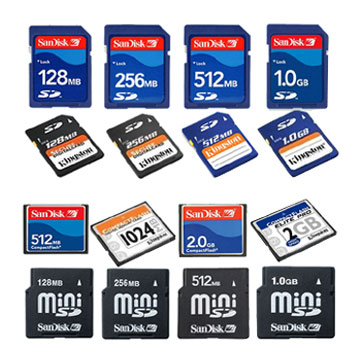
Flash memory cards They arent only for your DC. Probably the coolest yet overlooked ways to use your flash memory card is as floppy drive replacement. Think about it, a flash memory card is really a form of storage disk.
If you already own a card or a digital camera, chances are you already have the necessary equipment to read the card and transfer files to and from them. If you dont its easy.
Get yourself a flash memory card reader they are so inexpensive these days you can even pick one up free after rebate if you watch the deals. Hookup it up to your computer and pop in the card. It will show up on your computer as a new drive.
When youre ready to save data to it, just drag and drop. Its no different than a regular floppy or hard drive. Once you see in this light there is a whole bunch of things you can use your flash memory card for and here are 4 ideas for you.
1. Use as a greeting card. Hey theres always an occasion around the corner. If youre already thinking of sending a CD greeting card use your flash memory card instead. With the large storage sizes you can afford to have multimedia in your ecards too and when that person gets tired of it, the card itself is a gift for their computing convenience. As if that wasnt enough, you can probably get by with less postage too.
2. Use as media storage. One of the best things about flash memory cards is how much its small physical size can pack in. With memory sizes up to several Gigabytes, you could use it to store your media like video clips, picture clips, audio files and just about any downloadable content. Its small size also makes it highly portable without taking up valuable space on your notebook computer hard drive.
3. Sharing files or transferring files from one computer to another. If you need to do this often, heres a quick tip. Carry with you a USB card reader. Many of them are very compact and no heavier than your cell phone. Doing this has advantages over carrying a flash memory drive. Flash memory cards are smaller and a tiny catalog of cards can offer you much more memory than a flash drive. Better carry two things than a bunch of drives.
4. Run small software from it. Yes, there are tiny software that dont need to be installed and can run from the card itself. This is particularly helpful when youre using someone elses computer. Now you can carry your software with you too.
Now that you know gather up those flash memory cards and start using them. Just because your new camera isnt compatible with it doesnt mean you should let it go to waste and the best part is, you wont have to worry about obsolete cards anymore.
This Post Was Brought To You By :Lynn Chan
23.11.07
How to Buy a Flash-Based MP3 Player part 2
The most important consideration for many is price. If you're looking for something for $100 or less, you've got plenty of options; you can expect few extras and a capacity of 1GB or less. For around $150, you can get a player with lots of extra features, and at $200 you start moving into the higher capacities like 2GB and up. The highest-capacity flash-based players cost $250 to $299, and I'm not expecting those prices to drop very much before the end of this year.
Your best bet for getting the biggest bang for your buck, of course, is to read PC Magazine 's MP3 player reviews and use our online comparison tool to see the differences among players side-by-side. And nothing beats going to your local electronics shop and checking out your potential purchase in person before plunking down your hard-earned cash.
Below are three of the best flash-based MP3 players I've seen so far. The iPod nano (up to 4GB) is still the winner in terms of style, ease of use, software/hardware integration, and sound quality. The Samsung Yepp YP-Z5 (up to 4GB) is very similar to the iPod nano in design and pricing. Its controls aren't quite perfect, but it does offer PlaysForSure support—as well as impressive 30-hour battery life. While not offered in the large capacities of the other two, the Cowon iAudio U3 (up to 2GB) blows them away on extra features. (And it is now PlaysForSure-compatible via a recent firmware upgrade.) The iPod nano has a constellation of optional accessories available for it to add in other functions like FM radio, and accessories for the Z5 are starting to appear as well. Find out what else distinguishes these flash-based MP3 players from one another in our comparison table.
If you're looking for a little flash in your life, one of these MP3 players could be right up your alley. Read on to find one that fits your listening needs.
Reviewed in this story:
Apple iPod nano (4GB, $249) This digital music player is sleek, stylish, and easy to use.
Samsung Yepp YP-Z5 (4GB, $249.99) This has a more industrial look than the iPod nano, but supports PlaysForSure and offers impressive battery life.
Cowon iAudio U3 (2GB, $219.99) This flash-based device is packed with every feature under the sun, including video support.
Copyright © 2006 Ziff Davis Media Inc. All Rights Reserved. Originally appearing in PC Magazine.

Spot by:http://www.pcknowhow.co.nr/ written by:Michael Kobrin
Continue From previous title:How to Buy a Flash-Based MP3 Player part
How to Buy a Flash-Based MP3 Player

The Flash drive/ USB flash drive ,we use it for storing data with the capacity up to few GB.it's a portable back up device used for storage and transportation of data and applications.How about the Flash device come with the MP3 function?It store data at the mean time it a mp3 player.The flash-based MP3 player .
Intro by:e.elvin
They are the choice for listening to personal music, hours of it.. With no delicate moving parts, flash mp3 players can withstand the most rigorous workouts
How to Buy a Flash-Based MP3 Player- by Michael Kobrin
The flash-based MP3 player market has gotten fairly complex, thanks to an ever-changing cast of characters and an explosion of new features. But there is a path through the maze, and it begins with understanding what you need, and what you're willing to spend.
Let's start with what you need: something that works with whatever computer you have. If you have a Windows-based PC, all players are compatible, including Apple iPods. If you have a Mac, you've got two options: an iPod, or a device that is USB Mass Storage Class–compliant (USB MC), meaning it can be plugged into a computer without software installation and be managed via drag-and-drop. Many popular players work only with Windows Media Player (WMP) on machines running Windows, and some USB MC players can work with WMP as well.
You should also consider how tech-savvy you (or the person you're buying for) are. There are no-fuss-no-muss players that you simply take out of the box, plug in to your computer, and drag music onto; then there are players that require a little bit of fiddling around with software like iTunes or Windows Media Player—and in some cases, with additional proprietary software. USB MC players are best for nontechies who don't have huge music collections. Of course, iPods are also very easy to use, thanks to their excellent integration with iTunes. Devices that work only with Windows Media Player tend to be somewhat more challenging to manage because the hardware/software integration isn't as polished.
Advertisement
If you plan on using online download or subscription services like Napster and Yahoo! Music Unlimited, you need a player that is compatible with Microsoft's PlaysForSure (aka Windows Media DRM 10). Note, too, that tracks purchased from Apple's iTunes Music Store will work only on iPods.
Right Hear, Right Now It's best to figure out in advance how much listening you plan to do per day and how long you're likely to have to go in between charges. Some MP3 players use alkaline batteries, which may be the best solution for those who are away from computers or outlets for extended periods of time. Also, many players don't come with an AC adapter, so you have to charge them via a PC's USB port. The average player gets between 12 and 16 hours of battery life, though a few can go for several days before running out of juice.
Next, figure out what you want in terms of physical size, capacity, and features. (If you don't care about how big or what shape the player is, skip directly to capacity.) Style mavens will want something thin and sleek like the iPod nano or Samsung Yepp YP-Z5 that can slip into any pocket without ruining the lines of your clothes.
Flash players' capacity currently tops out at 4GB with the lone exception of SanDisk's 6GB player. Unless you use your MP3 player only at, say, the gym, you'll probably want at least 1GB of storage space. The general belief is that you can fit 250 songs per gigabyte, but this depends entirely on the quality of your music files. In real-world usage, you can expect from 200 to 225 songs per gigabyte.
The iPod nano and iPod shuffle aren't the most feature-rich players out there, but they do what they do very well in terms of sound quality and ease of use. That said, the sound quality of most MP3 players is more than adequate, though I do run across some that just don't cut it. Ease of use is another matter: Apple's click wheel is still king, though manufacturers like iriver are looking to change that with some interesting new designs. I dislike the little joysticks and touchpads on many players because they're just not very precise; I prefer buttons, with very few exceptions.
Aside from music playback, the three most important extra features for many users are photo/video playback, recording, and FM radio. Handy features like photo playback, FM radio, and voice recording are quickly becoming standard on MP3 players, as are less-useful features such as line-in recording. If you like to watch movie trailers or other short video clips, there are a host of video-capable flash players, though none of them have impressed me with the quality and smoothness of video (not to mention that the screens tend towards the eye-squintingly tiny). Language learners and aspiring musicians may want to look for other niche features like A-B repeat, which lets you loop a section of a song or audiobook.
Right on Tracks All digital music players can play MP3 files, which is sufficient for most users. Be aware, however, that iPods won't play WMAs, and very few non-Apple players play AAC files (and none but iPods play protected AAC tracks). If you're concerned with getting the best sound quality possible, and you're planning to upgrade the player's headphones for something better, you may want your player to support a lossless compression format like Apple Lossless (iPods only), FLAC (supported by a few non-Apple players), or WMA Lossless (supported only by a small handful of Windows Mobile-based players).
Continue at: How to Buy a Flash-Based MP3 Player part2

Spot by:http://http://www.blogger.com/pcknowhow.co.nr
Brief:
This blog will share with you some of my favorite computer parts and buying tips when it comes to buying computer hardware parts. However,even if it seems like nothing complicated for dummies.
We all have difference need on the system that we need,before give our hard earned money to any retailers out there. Knowing what you really need is necessary?
In most of the cases you are going to need to have a large storage,fast loading time computer system,even you not going to use it each and every day,large amount of storage and memory space is necessary for today demanded application software needs, but for those just in case situations when dealing with a bunch of unexpected tasks,you will be willing to prepare something fast and get the jobs done if you have an fast machine.Good news is the new hardware today can easily be used both home PC desktop and laptop.
If you are out going person , it is a good to have powerful high speed laptop with mobile wireless broadband connection.It will definitely prove to be very helpful for your Carree. If you are totally newbie ,there is so much to be learn. This informational blog will show you how to get the right computer hardware without wasting a lot of money and time on research.